Apple CarPlay is a revolutionary feature designed to bring the power of your iPhone directly to your car’s dashboard. It provides seamless access to essential apps like navigation, music, and calls, all with a focus on safe and convenient use while driving. However, one challenge drivers often face is the inability to stream video services, such as Netflix, through CarPlay. That’s where StreamFox for Video comes in. This simple, user-friendly solution allows you to easily access Netflix on Apple CarPlay, letting you enjoy your favorite content safely and efficiently. In this article, we’ll guide you through the easy steps to set it up.
1. Why Apple CarPlay Doesn’t Support Netflix Directly?
Apple CarPlay does not support Netflix directly due to its strict focus on safety and minimizing distractions while driving. CarPlay is designed to provide drivers with access to essential apps like navigation, music, and messaging while ensuring their attention remains on the road. Video streaming apps, such as Netflix, are restricted because they pose a significant distraction and could compromise safety. Apple’s policies intentionally limit video apps from being accessible through the CarPlay interface to maintain a driving experience that is as safe and focused as possible.
2. Safe and Easy Way to Get Netflix on Apple CarPlay
If you’re looking for a safe and easy way to get Netflix on Apple CarPlay, it’s essential to use legal, secure, and reliable methods for streaming video in your car. Avoiding risky practices like jailbreaking ensures your device and data stay protected, while also complying with copyright regulations.
That’s where StreamFox for Video comes in. This tool allows you to stream Netflix by downloading videos for offline use, giving you the flexibility to watch your favorite shows and movies without the need for an internet connection or any unauthorized modifications to your device. It’s a simple, legal, and hassle-free solution to bring Netflix entertainment to your road trips.
How to use:
StreamFox for Video lets you download HD videos up to 4K in MP4, MKV, or MOV with a 99% success rate. Supporting Netflix, Amazon, Hulu, MAX, YouTube, and Disney+, it offers 10X faster speeds, batch downloads, and customizable subtitles (soft, hardcoded, SRT, VTT).
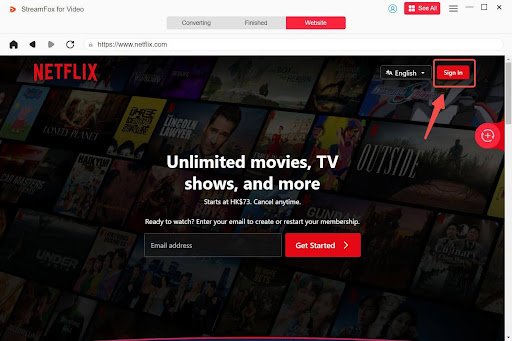
Step 1: Download and Launch StreamFox, Then Sign in to Netflix
Open the StreamFox for Video software on your Mac or PC after downloading it. Once it’s running, log in to your Netflix account using your credentials.
Step 2: Find Your Desired Movie or Show
Type the movie or show’s title or URL into the search bar. Alternatively, you can drag your favorite movies to the red plus icon in the upper-right corner.

Step 3: Personalize Video Settings
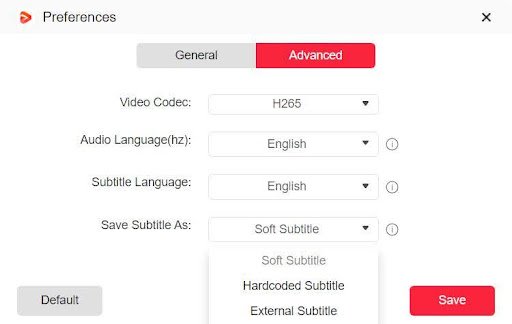
Go to Preferences > Advanced and configure the following options to suit your needs:
- Video Resolution: Choose your desired resolution to enhance quality or reduce file size.
- Audio Quality: Adjust audio settings to achieve the best balance between sound clarity and file size.
- Subtitle Options: Select from three modes—Internal, External, or Hardcoded. Hardcoded subtitles are permanently embedded in the video (ideal for seamless playback across devices).
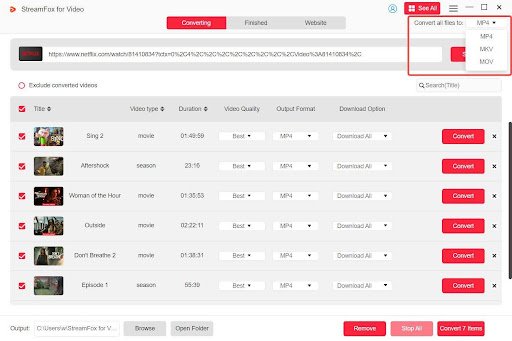
Step 4: Select MP4 as the Output Format
Choose MP4 as the output format for your downloaded videos to ensure they are compatible with a wide range of devices and media players.
Step 5: Begin the Download Process
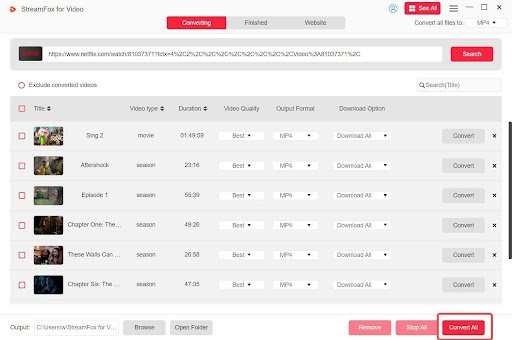
Click on “Convert All” to start downloading. The selected Netflix content will be saved to your computer in MP4 format.
Step 6: Connect to Apple CarPlay
After downloading the content, connect your device (smartphone, tablet, or laptop) to Apple CarPlay via USB or a wireless connection.
Once connected, you can play your downloaded Netflix videos using CarPlay-compatible apps or directly from the built-in media player on your device.
How StreamFox Ensures Smooth Playback?
StreamFox ensures that the downloaded Netflix videos are of the highest quality, with options to download in 1080p and up to 4K resolution using lossless technology. The MP4 format is optimized for playback on a variety of devices, including CarPlay, ensuring a smooth, buffer-free experience.
StreamFox also supports a range of subtitle options, making it suitable for multilingual users, and its DRM management ensures that your downloads are secure and fully functional on any device. Whether you’re on a road trip or simply commuting, StreamFox provides a seamless way to watch your favorite Netflix content through Apple CarPlay without sacrificing video quality.
3. Benefits of Using StreamFox for Video to Stream Netflix on CarPlay
- Offline Viewing: With StreamFox for Video, you can download Netflix movies and shows in advance, allowing for offline viewing during road trips. This eliminates the need for an internet connection while on the road, providing uninterrupted entertainment even in areas with poor connectivity.
- High-Quality Videos: StreamFox ensures that your downloaded content retains its original quality, offering stunning resolutions up to 4K. This means you can enjoy Netflix shows and movies in crisp, high-definition on larger CarPlay displays, giving a cinema-like experience in your car.
- Safe and Convenient: By downloading Netflix content to watch offline, you avoid the distractions and potential safety concerns of streaming during driving. StreamFox’s offline viewing capability ensures that the content plays smoothly without consuming data or causing interruptions.
- No Jailbreak Needed: StreamFox for Video provides an easy, user-friendly way to watch Netflix on Apple CarPlay without the need for jailbreaking or modifying your device. This ensures you remain compliant with Apple’s guidelines, keeping your device secure while still enjoying your favorite shows on the go.
4. Alternatives and Considerations For Watching Netflix in Your Car
Method 1: Get Netflix on Apple CarPlay via ApowerMirror
ApowerMirror is a popular screen mirroring app that lets you broadcast your iPhone’s screen onto your car’s display. Here’s how you can use it to stream Netflix:
Steps:
Step 1. Install ApowerMirror:
Download and install the app from the App Store on both your iPhone and car.
Step 2. Open ApowerMirror:
Launch the app on both devices (your phone and car display).
Step 3. LocalCast Connection:
Tap the LocalCast button on your phone and wait for your car’s screen name to appear.
Step 4. Select the Car Display:
Tap your car’s name, then hit the Cast button.
Step 5. Start Mirroring:
Click on the Start Broadcasting button to begin mirroring your iPhone screen.
Step 6. Launch Netflix:
Open Netflix on your iPhone and play any video you want, which will now appear on your car’s screen.
Limitations of ApowerMirror:
- Incompatibility with Native CarPlay: ApowerMirror doesn’t integrate directly with Apple CarPlay, which means it uses a workaround. You won’t have full control using your car’s native touch or buttons.
- Potential Lag or Sync Issues: Mirroring apps often introduce some lag between your phone and the car display, especially during high-quality streaming or if your internet connection is unstable.
- Legal and Safety Concerns: Many regions prohibit watching videos on your car’s display while driving. Always ensure that you comply with local laws and only use this feature when parked.
- Drains Battery: Using screen mirroring and streaming Netflix will quickly drain your phone’s battery, so keeping a charger on hand is essential.
- App Installation on Car: Not all car systems are compatible with third-party apps like ApowerMirror, which could limit this option based on your vehicle’s make and model.
Method 2. Use CarBridge App
One popular way to bypass the restrictions of Apple CarPlay and watch Netflix in your car is by using the CarBridge app. This third-party tool lets you access apps like Netflix directly on your car’s display without needing to jailbreak your iPhone.
Steps:
Step 1. Prepare Your iPhone:
- Go to Settings > General > Background App Refresh, and enable it for WiFi & Mobile Data.
Step 2. Download and Install CarBridge:
- Open Safari on your iPhone and navigate to the CarBridge download site.
- Select Download Now, choose iOS, and tap Start Installation.
- Follow the prompts to allow installation of apps from developers, then wait for the process to complete.
Step 3. Launch Netflix via CarBridge:
- Turn on Bluetooth on your iPhone.
- Open the CarBridge app and connect your iPhone to your car’s system.
- Run the Netflix app and start streaming your favorite shows and movies.
Limitations of Using CarBridge:
- Compatibility Issues: CarBridge may not be fully compatible with the latest versions of iOS, meaning newer updates might disrupt its functionality.
- Installation Complexity: The installation process can be cumbersome, requiring you to follow several steps and install additional apps.
- Out-of-Sync Audio/Video: Users may experience issues with audio and video not being perfectly synced, which can impact the viewing experience.
- Risk of System Instability: As CarBridge is a third-party app, it is not officially supported by Apple, which could lead to occasional system bugs or instability.
5. Conclusion
Getting Netflix on Apple CarPlay is made easy and safe with the help of StreamFox for Video. By following the simple steps outlined in this guide—downloading StreamFox, signing in to Netflix, customizing video settings, and downloading your favorite shows or movies—you can enjoy high-quality, offline Netflix content on your car’s display. StreamFox ensures that you can watch your favorite content legally, without the need for risky modifications like jailbreaking.
With StreamFox, you can safely and conveniently enjoy your favorite shows and movies during your commute or road trips, all while complying with Apple’s guidelines. So sit back, relax, and let StreamFox enhance your in-car entertainment experience!