In Roblox, efficiency is everything. Especially if you’re grinding events, farming in games like Pet Simulator X, or managing a small army of alts. But the default Roblox launcher limits you to one session per device. That means logging in and out for every alt, juggling cookies, and praying you don’t run into authentication errors. It’s not sustainable if you’re running more than two accounts.
That’s where this guide comes in. We’re breaking down how to use Roblox Account Manager (RAM) along with a few critical tools like FPS Unlocker and Multi-Roblox settings. With the right setup, you’ll be able to manage up to 10 alts simultaneously without breaking your system or your sanity.
Why You Need a Proper Alt-Farming System in 2025
Let’s start with the problem. Roblox isn’t designed for alt farming. The moment you try launching two sessions, it kicks you out of the first. Add in lag, repeated logins, and client crashes? You’re wasting hours just managing accounts.
A proper farming setup doesn’t just save time. It multiplies your productivity. Whether you’re a trader, a developer testing multiplayer features, or just someone grinding rewards across multiple accounts, having the right tools makes all the difference.
Roblox Account Manager (RAM): What It Does & Who It’s For
RAM is a Windows-based tool that lets you store, manage, and instantly switch between multiple Roblox accounts. You load in your alts once and from then on, launching a new session is a single click. When paired with Multi-Roblox, Delta x and an FPS Unlocker, you get real-time, parallel clients with full control.
Who uses it?
- Farmers running 5+ alts for AFK grinding
- Traders transferring items across accounts
- Content creators showcasing multiple views
- Devs & testers simulating player interactions
And yes. It supports launching all your clients at once if you enable multi-instance mode.
This is How to Download Roblox Account Manager Safely
You can safely download Roblox Account Manager directly from Bloxecutor ( the best online platform for Roblox gadgets). The project is now archived, but the files are still accessible.
Stick to version 3.6.1. Avoid 3.7.2. Multiple Reddit threads and Discord posts flag it for triggering antivirus software and odd behavior. If you already installed 3.7.2, delete it and roll back to the earlier build. Set the config to skip auto-updates to avoid getting prompted again.
Setting Up RAM: Step-by-Step Instructions
- Extract and launch Roblox Account Manager.exe
- Add accounts via the “Add Account” button (use burner accounts—not your main)
- Go to settings and enable Multi-Roblox
- Toggle on FPS Unlocker for better client performance
- Launch each account one at a time (10–15 sec apart to prevent crashes)
Reddit users report best results when launching RAM as admin and turning off unnecessary background apps. Save config files to avoid relogging every session.
How to Run Multiple Roblox Accounts Side-by-Side
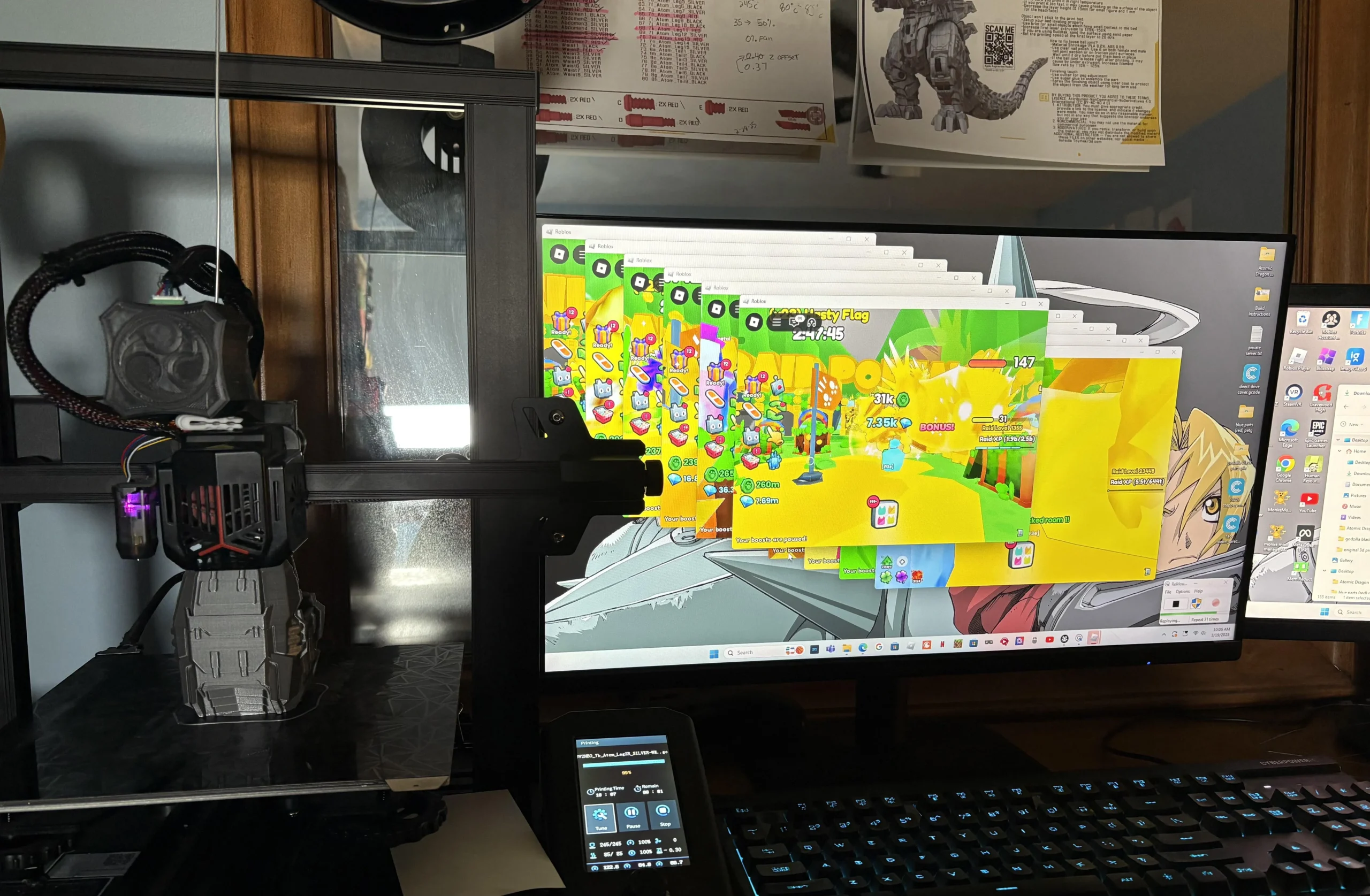
By enabling multi-instance support in RAM, each Roblox client runs in an isolated session. No cookie conflicts, no session booting. For those running 4+ clients:
- Launch sessions 10 seconds apart
- Cap FPS between 60–120 using the unlocker
- Reduce graphics settings in each instance
- Use Task Manager to monitor CPU/GPU usage
If you rush launches or run high-FPS on every alt, your PC will lag or crash.
Troubleshooting RAM: When Things Go Wrong
Issue: RAM only opens the Roblox installer.
Fix: This is caused by a launcher path mismatch. Roll back to 3.6.1, delete config.json, and restart.
Issue: Invalid Authentication Ticket errors.
Fix: Launch through RAM only. Don’t use browsers or switch accounts mid-session. Keep cookies intact.
Issue: RAM suddenly crashes or stops opening.
Fix: Run as admin, enable compatibility mode for Windows 8, and turn off auto-updates.
Bonus Tools to Complete Your Farming Setup
FPS Unlocker: Unlocks smooth 60+ FPS per client.
Multi-Roblox (Standalone): Available at Bloxecutor. Useful if RAM fails.
Macro Tools: Record actions with TinyTask or Pulover’s Macro Creator. Great for auto-claiming rewards or simulating movement.
Is Roblox Account Manager Safe?
Let’s be real: RAM looks shady to antivirus software. It stores encrypted login credentials and modifies Roblox client behavior. But it’s not malicious. Open-source devs have reviewed the code, and unless you downloaded from a fake site, you’re fine.
Avoid version 3.7.2. Stick to 3.6.1. Only use alt accounts. And never, ever click sketchy download links from YouTube descriptions.
Using RAM on Mac? Here’s What You Can Do
RAM doesn’t support macOS natively. Your options:
- Parallels/VMware Fusion: Install Windows inside macOS
- Wine (limited): Some success, but unreliable on newer OS versions
- Browser workarounds: SessionBox or separate Chrome profiles for login swapping
These aren’t perfect, but they’re your best bet until someone ports RAM for Mac.
Safety Tips for Alt Farming Without Getting Flagged
- Never run your main account through RAM
- Use proxies or VPNs per instance if running many alts
- Limit to 5–7 alts per machine unless you’re on a high-end rig
- Set RAM to offline mode and disable updater in config.json
The goal is efficiency. Not attracting bans or breaking TOS.
FAQs
Is RAM bannable? No bans reported for RAM alone. Use burner accounts and don’t bot or exploit.
Why does RAM keep opening the installer? Likely using a broken version. Downgrade to 3.6.1.
Can I run 10 clients at once? Yes, with enough RAM (16GB+), a good CPU (8 threads), and capped FPS.
Is there a browser version of RAM? No, but extensions like SessionBox help for quick login switching.
Final Word
Roblox Account Manager isn’t perfect, but it’s incredibly effective when used right. Stick to the stable version, avoid shady sites, and run alts—not mains. With FPS Unlocker and a few tweaks, you’ll turn your Roblox setup from a mess into a machine.
Whether you’re a farmer, scripter, or just someone tired of relogging, this system gives you more time playing and less time managing.